

A Starlight and Astro plugin that adds 26 features to code blocks, such as focus, line states, annotations, links to API docs and runnable examples. It builds on Expressive Code, so the code blocks you already have keep working.
Using an agent? Point it at the bundled skill.
Add the package to the site:
npm install starlight-codeblocksThen add codeblocks() to the Starlight plugins in astro.config.mjs:
import starlight from '@astrojs/starlight';
import { defineConfig } from 'astro/config';
import codeblocks from 'starlight-codeblocks';

export default defineConfig({
  integrations: [
    starlight({
      title: 'My docs',
      plugins: [codeblocks()],
    }),
  ],
});
On an Astro site without Starlight, add codeblocks() from starlight-codeblocks/astro to integrations instead. The Astro setup page gives the details.
Most features start only when a code block uses their attribute, or a comment notation directive such as # [!code focus]. A few, such as file icons and colour swatches, apply to every matching block.
The documentation has a page for each feature, with live examples, and a reference for every option.
Each section below shows the smallest syntax for a feature and how it looks to readers. Open a section to see it.
Annotations
Add numbered markers to lines. Each marker opens a note in a popover, so the code stays clean until a reader asks.
runs-on: ubuntu-latest # [!annotate] Uses the Ubuntu GitHub Actions runner.
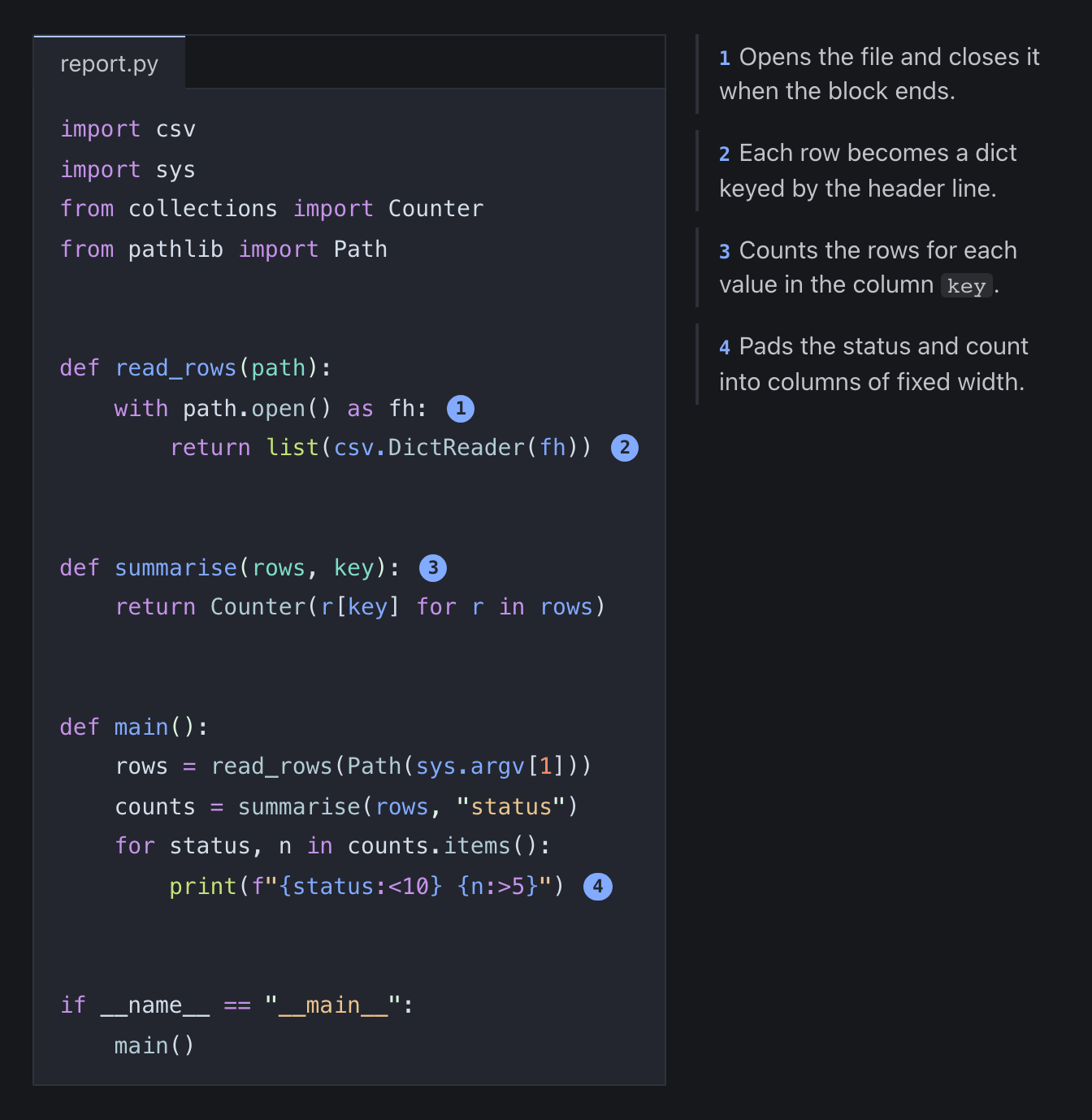
Side annotations
Show the notes of an annotated block in a column beside the code, so readers see every note next to its line.
```py annotations="side"
```
Footnotes
Add numbered badges to lines, with the notes in a list under the block, where readers see them all at once.
# [!ref] Creates the application object.
app = Flask(__name__)
Inline callouts
Put a short note in a bubble above a line, with an arrow that points at the word it explains.
// [!callout /signal/] Lets `controller.abort()` cancel the request.
const res = await fetch(url, { signal: controller.signal });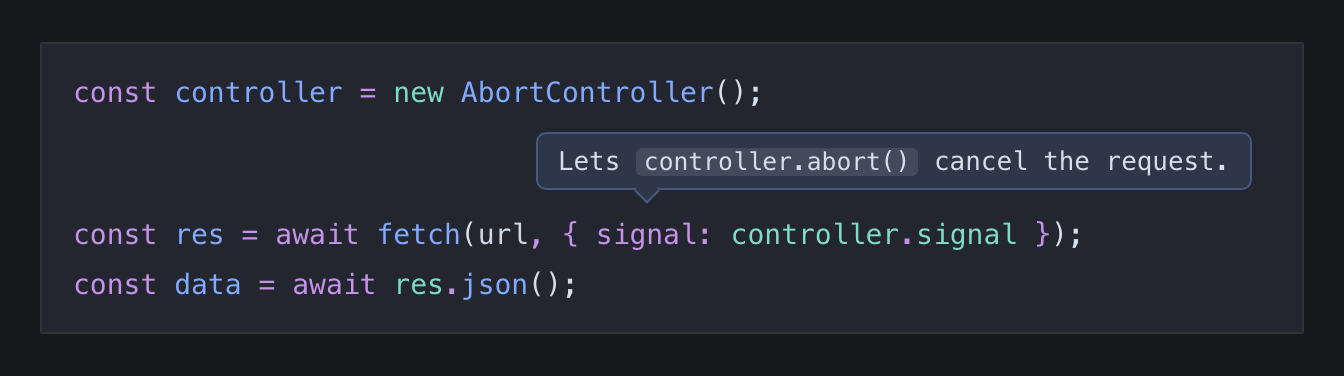
Scrollycoding
Explain a code block in prose steps that scroll past it, while the block stays in view and focuses the lines of each step.
import { Scrollycoding, Step } from 'starlight-codeblocks/components';

<Scrollycoding>

```js
```

<Step focus="1">Import Express.</Step>
<Step focus="3">Create the app object.</Step>

</Scrollycoding>
Code walkthrough
Step through versions of one code block, and watch the code move from each version to the next, so readers see what changed.
import { CodeWalkthrough } from 'starlight-codeblocks/components';

<CodeWalkthrough>

```js step="Create the app"
```

```js step="Parse JSON bodies"
```

</CodeWalkthrough>
Focus

Blur the lines outside a range, so that readers look at the lines that you name first. Every line becomes sharp when a reader hovers over the block or moves keyboard focus into it.
```js focus={4-7}
```
Line states
Tint lines as errors, warnings, notes or successes, with an optional message after the code, like the diagnostics in a code editor.
for name in sys.argv[1:] # [!code error] SyntaxError: expected ':'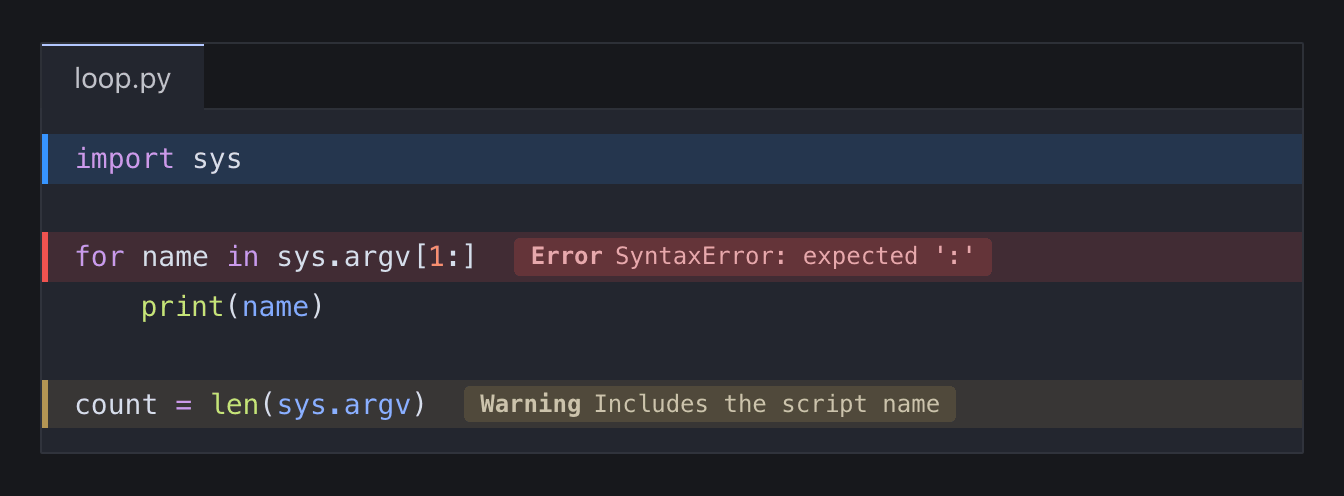
Code mentions

Link a phrase in the prose to lines of the code block below it, so that readers see which lines the text is about.
The [base case](#mention:base) stops the recursion.

```py
    if n == 0:  # [!mention base]
```
Hidden lines

Hide the imports and set-up that readers need to run an example but not to understand it. The copy button still copies every line.
```py hidden={1-3,6-7}
```
Expandable blocks

Show the first lines of a long block, with a fade and a button to reveal the rest.
```py expandable={8}
```
Visible whitespace
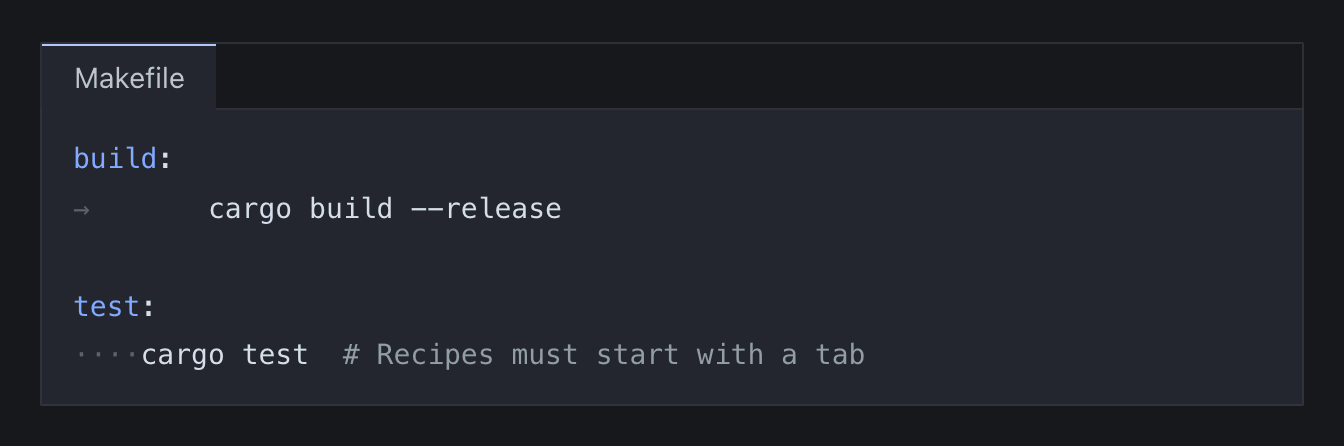
Show spaces and tabs as faint glyphs, for the blocks where indentation changes the meaning of the code.
```make whitespace
```
Colourised brackets
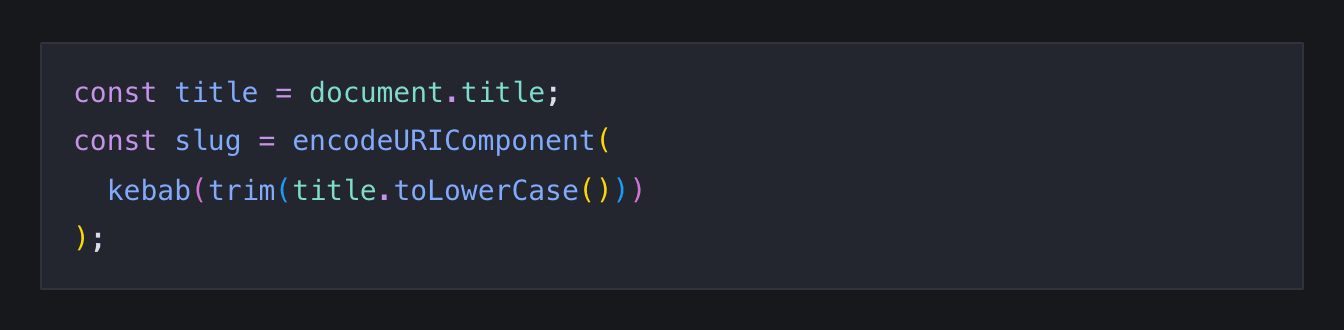
Colour matching brackets by nesting depth, so readers can match the pairs on a dense line of code.
```js brackets
```
Colour swatches
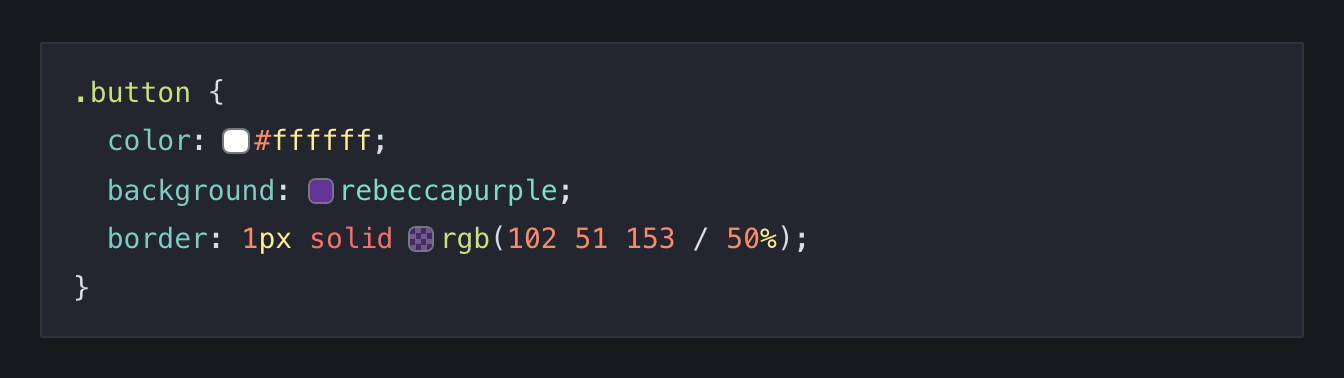
Show a small swatch of each CSS colour next to its value. Readers can click a colour to copy it. Swatches start on their own.
```css
.button { background: rebeccapurple; }
```
File icons
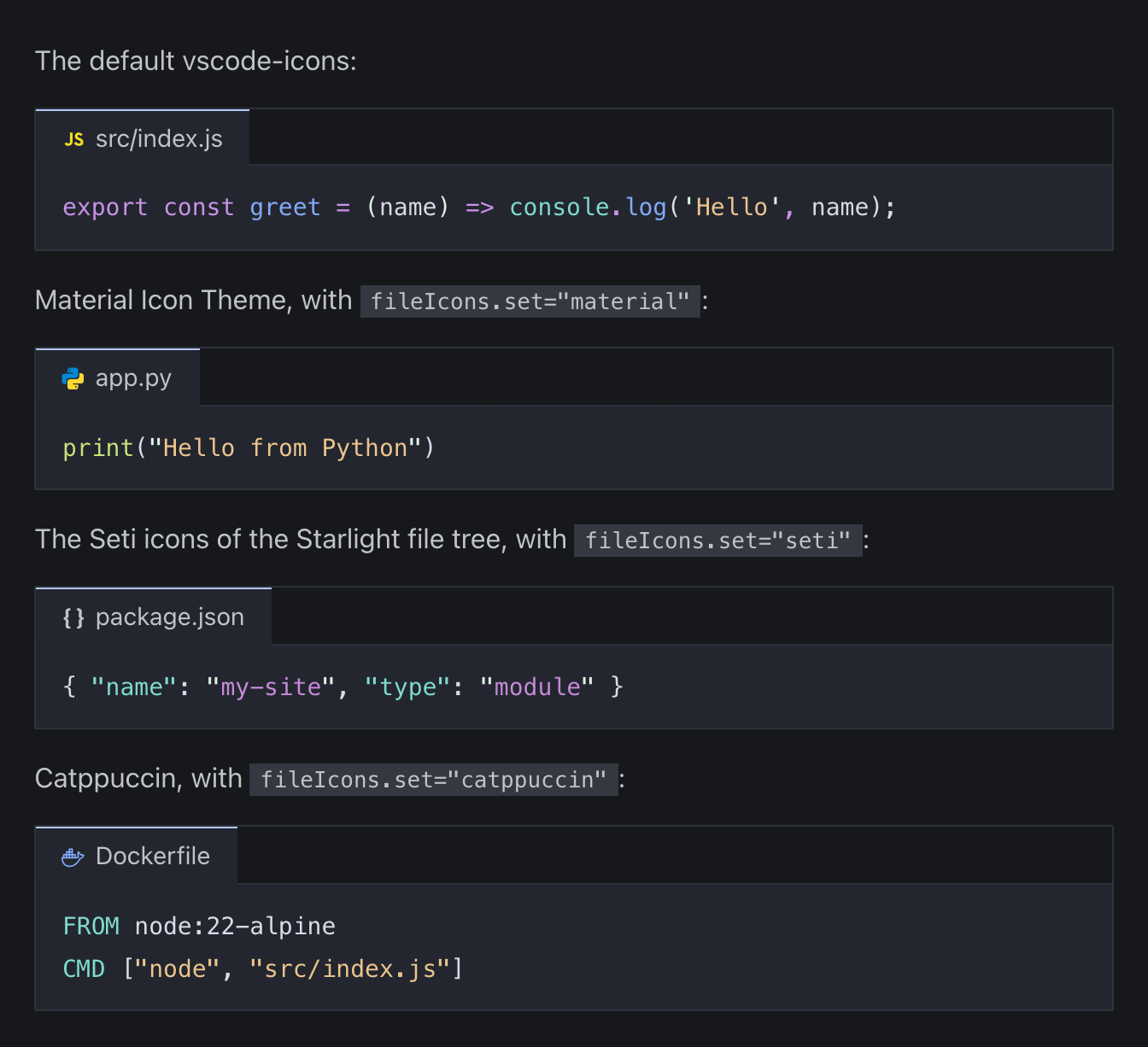
Show the icon of the file type before the title of a code block. The icons come from vscode-icons by default, another coloured icon set, or the Starlight file tree. File icons start on their own.
```json title="package.json"
{ "name": "my-site" }
```
Inline code highlighting
Give inline code in the prose the syntax colours of the code blocks, from a language suffix or a default language for the site.
> - In JavaScript, `[] + {}{:js}` is `"[object Object]"{:js}`.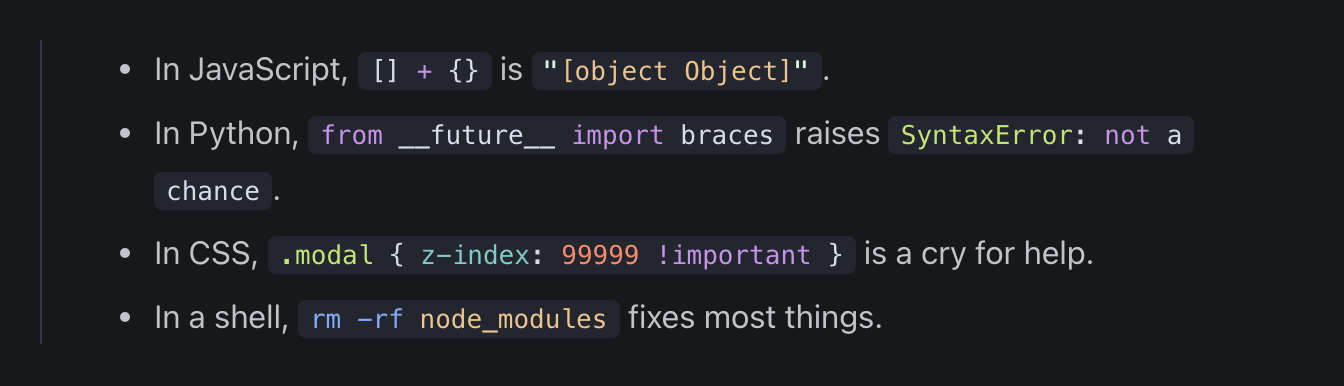
Word-level diff
Highlight the words that changed inside each line of a diff, so readers find a small edit in a long line. It applies to each removed line that an added line follows.
-const timeout = 5000;
+const timeout = options.timeout ?? 5000;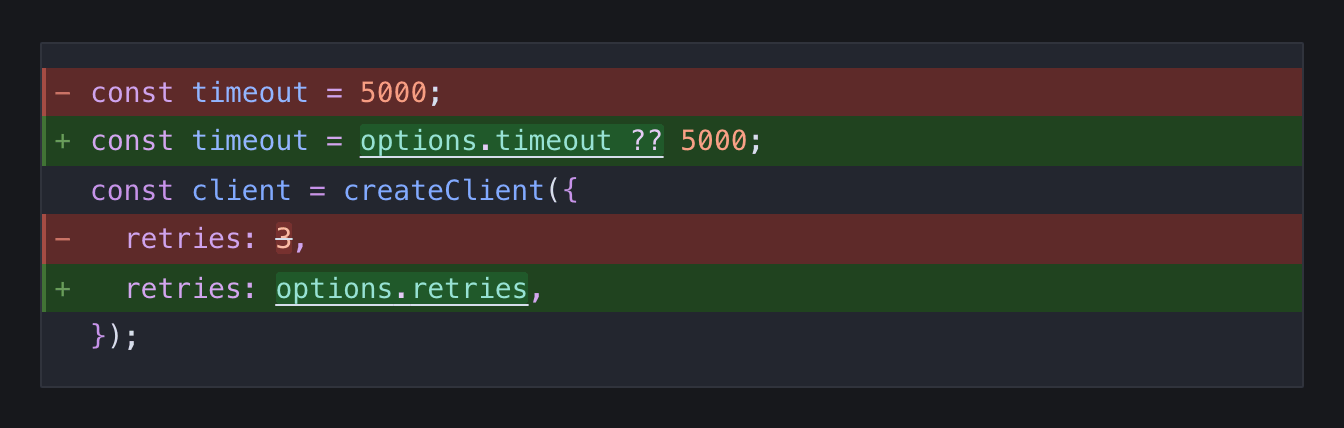
Code links
Turn text in code into a link with a card that describes it, from a directive in the comment above.
# [!link /linspace/ https://numpy.org/doc/stable/reference/generated/numpy.linspace.html] Returns evenly spaced numbers over an interval.
x = np.linspace(0, 1, 50)
API auto-linking
Link the names in code examples to their reference pages, with a card that shows the signature and a summary. Adapters for Python and Nextflow come with the plugin.
import json
from pathlib import Path

run = json.loads(Path("run.json").read_text())
Line permalinks

Give a code block line numbers that link to each line, so readers can share a link to the exact lines they mean. Shift-click to select multiple lines.
```yaml id="cfg"
```
Code tabs

Show several code blocks as one, with editor tabs in the title bar. Use it for the files of a project, or the commands for each package manager.
:::code-tabs
```yaml title=".github/workflows/ci.yml"
name: CI
on: push
```
```py title="greet.py"
print("Hello, world!")
```
```js title="greet.js"
console.log('Hello, world!');
```
:::
Fill-in placeholders

Turn placeholders such as YOUR_TOKEN into fields, so readers type their own values into every block and the copied code.
```sh placeholder="YOUR_TOKEN"
```
Smart shell copy
Add a Copy commands button to terminal blocks, which copies the commands without the prompts or the output. It applies to every terminal block with a prompt line, and to Python sessions with >>> prompts.
$ uv tool install ruff
Resolved 1 package in 180ms
Open in playground
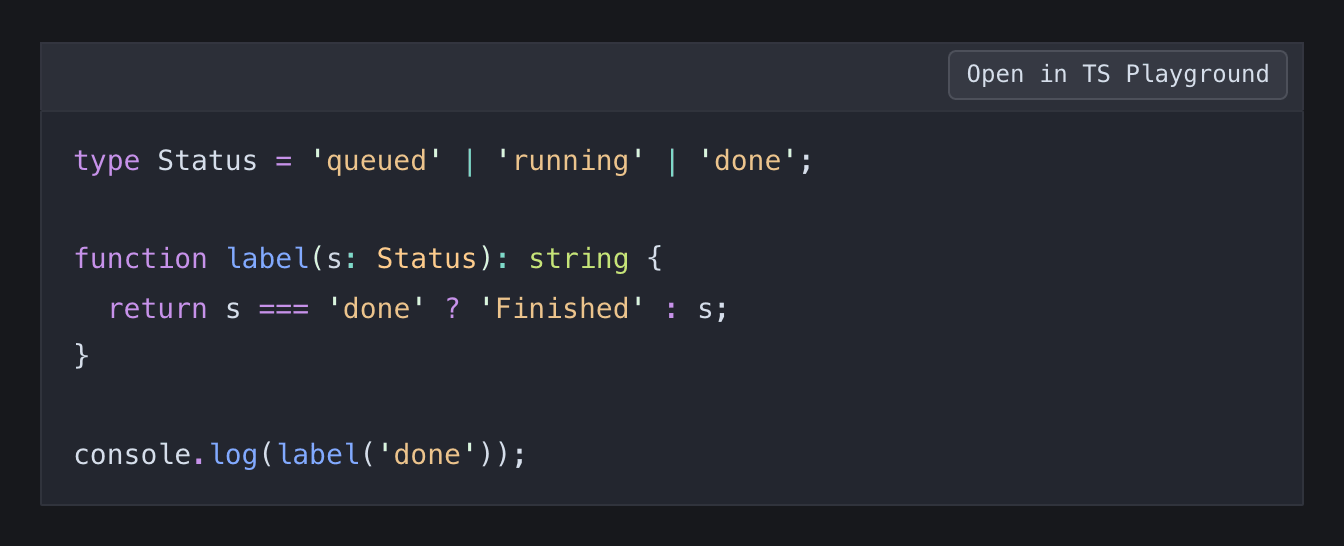
Add a title bar button that opens the example in an online playground, with the code already filled in.
```ts playground="typescript"
```

Run code
Add a Run code button that runs the example in the browser and shows the output under the block. Python, JavaScript and TypeScript work with no set-up. Python runs with Pyodide, which loads only when a reader clicks Run code, and installs the packages that the code imports.
```py runnable
```
MIT