


- Documentation: Read the documentation.
- GitHub Repository: View codesource.
- PyPI: Install via pip.
PyImageLabeling is a powerful tool with a user-friendly interface based on PyQT6 for creating image masks. These labeled images are used in the creation of machine learning models dedicated to computer vision tasks.
Labeling
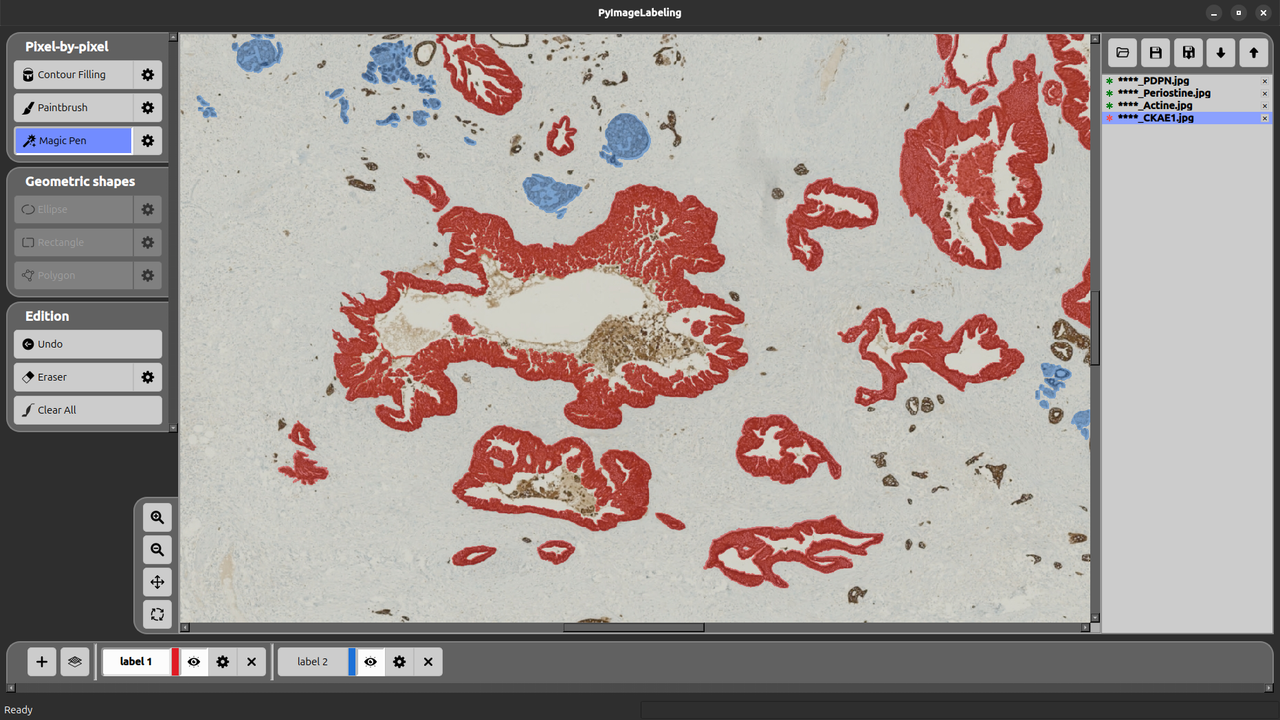
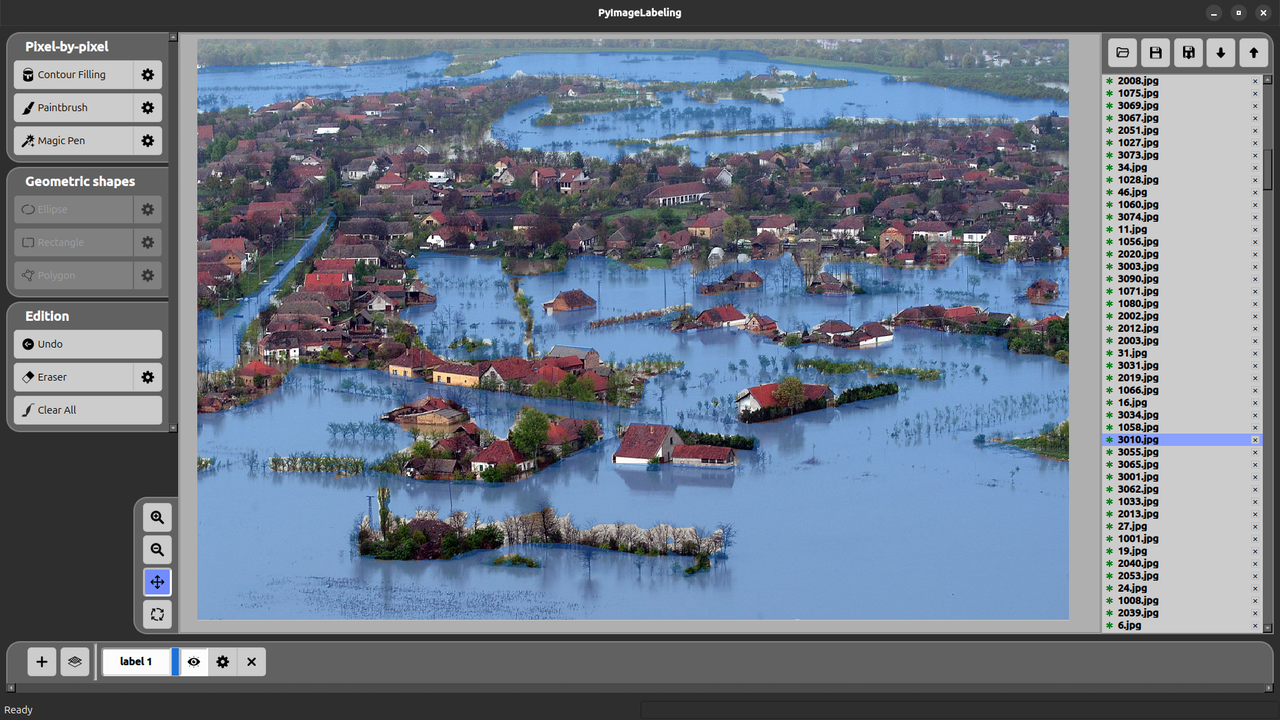
- Pixel-by-pixel: paintbrush, magic pen (selects similar colors, RGB or HSV tolerance) and contour filling.
- Geometric shapes: polygon, rectangle and ellipse.
- Several labels per image, each with its own color, opacity and visibility.
Editing
- Smart eraser: erase freely, or only a color range with an adjustable tolerance.
- Change labeled area: move an annotated region to another label.
- Undo with a configurable depth, and Clear All.
AI assistance (optional: models are downloaded from Hugging Face on first use, and the GPU is used when available)
- SAM Assist: click to add (+) or remove (−) points, or drag a box, and Segment Anything draws the mask. Presets range from fast to precise, plus a medical model (MedSAM).
- Text-to-mask: describe the object in English or French (colors, shapes, position); Grounding DINO finds it and SAM draws the mask.
- One-shot propagation: annotate one image and propagate the label to all the others (DINOv2 + SAM, no training), then step through the batch to review and fix it.
- Train a model on your annotations: segmentation (ResNet or DINOv2 backbone) and detection; predict the current image, then accept or clear the predictions.
- Active learning: Suggest next to label jumps to the image the model is least sure about.
Images and workflow
- Image options: brightness, contrast, gamma, saturation, hue, sharpness, grayscale, color inversion and color replacement, saved as reusable presets.
- Import existing masks as labels.
- Never lose your work: auto-save, recovery after a crash, and saves that cannot be left half-written; Help > Crash Report & Logs shows what happened.
- Menu bar and keyboard shortcuts.
Note that you need first Python 3 (version 3.12, or later) to be installed. You can do it, for example, from Python.org.
Check whether you have the last version of PyPi:
python3 -m pip install -U pipInstall PyImageLabeling:
python3 -m pip install -U PyImageLabelingTo launch PyImageLabeling:
pyimagelabeling(python3 -m PyImageLabeling works too.)
uv downloads a suitable Python by itself and installs PyImageLabeling in its own environment:
uv tool install PyImageLabeling
pyimagelabeling
Update later with uv tool upgrade PyImageLabeling.
Download PyImageLabeling_vX.Y.Z.exe from the latest release.
Just double-click on the executable file to launch PyImageLabeling (no Python needed; machine learning runs on the CPU).
Here is an illustration for Linux. We assume that Python 3 is installed, and consequently ‘pip3’ is also installed. In a console, type:
git clone https://github.com/crillab/PyImageLabeling.gitYou may need to update the environment variable ‘PYTHONPATH’, by typing for example:
export PYTHONPATH="${PYTHONPATH}:${PWD}/.."Get the last version of pip:
python3 -m pip install --upgrade pipExecutes the pyproject.toml inside the PyImageLabeling directory and installs dependencies ("numpy", "pyqt6", "opencv-python", "pillow", "matplotlib").
python3 -m pip install -e .To launch PyImageLabeling:
python3 -m PyImageLabelingThis project is licensed under the MIT License - see the LICENSE file for details.
- Computer Vision: Create training datasets for object detection and segmentation
- Medical Imaging: Annotate medical scans and diagnostic images
- Autonomous Vehicles: Label road scenes and traffic elements
- Agriculture: Mark crop areas and plant health indicators
- Quality Control: Identify defects and areas of interest in industrial applications